
Help and Information
 Introduction
TagVeil is a community-minded application for people who want to communicate with others but who want to do so anonymously.
It is made up of Spaces (communities) each of which has its own topics and allows you to talk both publicly and privately to other members.
When you join TagVeil you don’t provide any personal information that might identify you – we don’t ask for an email address or phone number.
You can choose a new name for each Space you join or keep one name throughout the site.
Reveal as much or as little about yourself as you wish. Build trust in other members and choose to tell them more about yourself.
Your true identity cannot be discovered at any time and you remain completely incognito, unless you choose otherwise.

Click on the Join menu button to Register a TagVeil account.
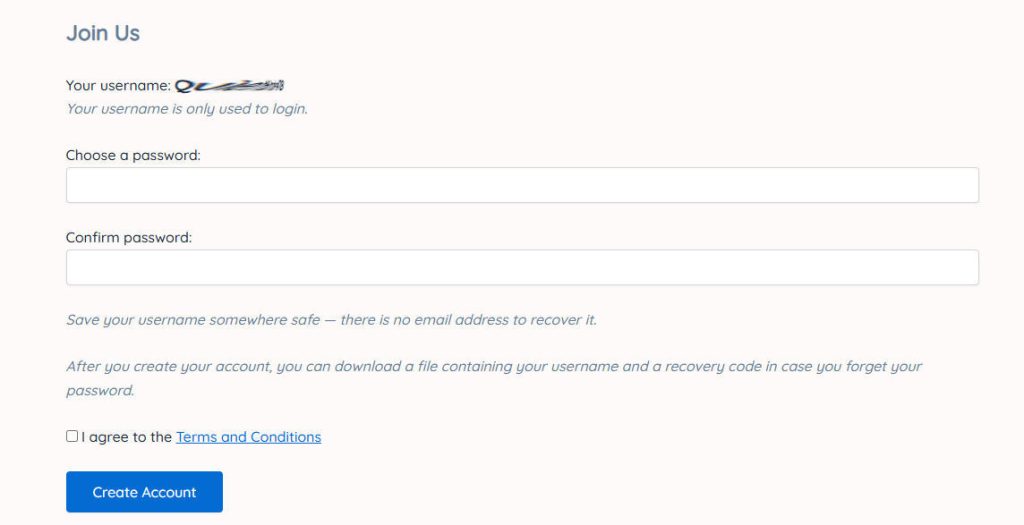
You are given a username which you will only ever use for logging in to your account. This name is not used anywhere else.
Create a password and agree to the Terms and Conditions.
You can download a file that contains your username and a recovery code in case you forget your username or password.
You will also be given the choice of setting up a 2FA passcode to further protect your account.
Home page
Your Home page consists of a menu, dashboard and panels that link you to different parts of TagVeil.
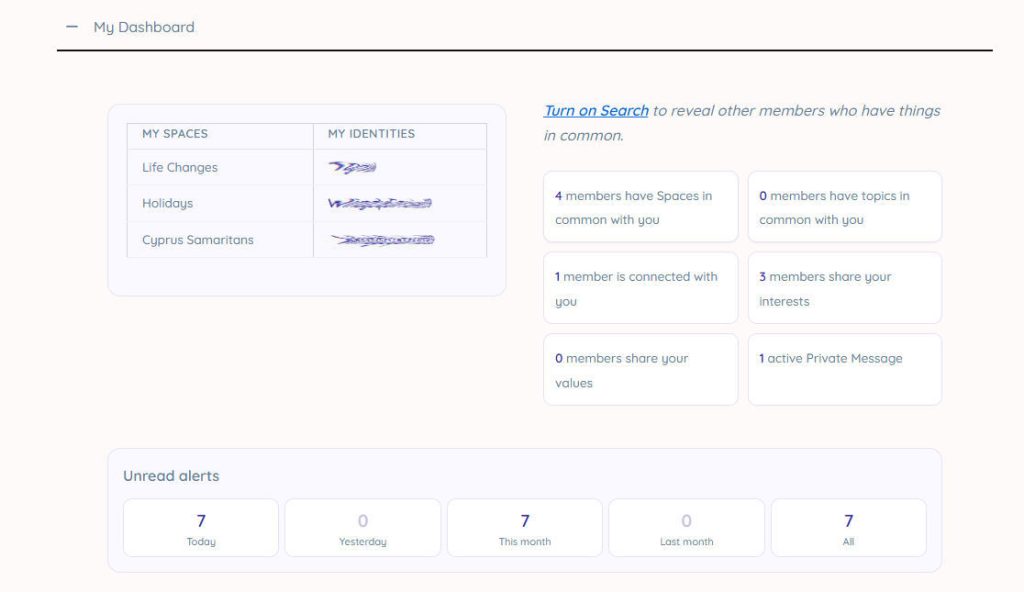
My Dashboard shows statistics relating to your identities, members you have things in common with, your Connections, Private Messages and Alerts.

Tags
Tags are bits of information about you.
Start off with nothing being entered or revealed and only change this if you choose.
Your Tags are updated in the following menu:
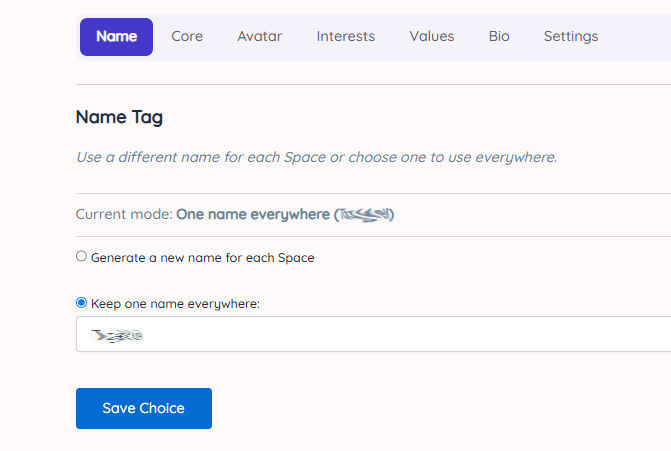
Your Name Tag determines what name(s) you wish to use throughout TagVeil.
You can automatically have a new name generated for each Space you visit or choose to keep one consistent name across all Spaces.
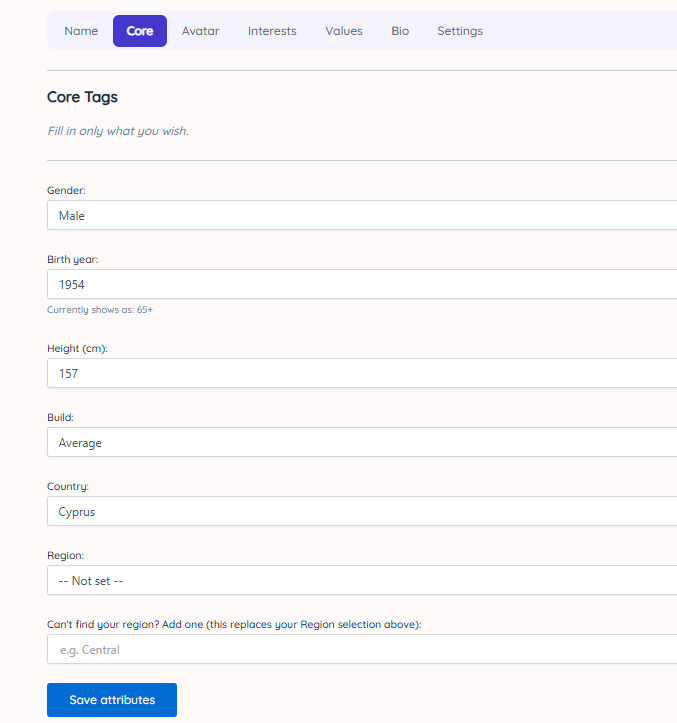
Your Core Tags allow you to enter core information about yourself, but only if you choose to do so.
Use these settings to reveal a little about yourself in the topics you post in and to find members who have things in common with you.
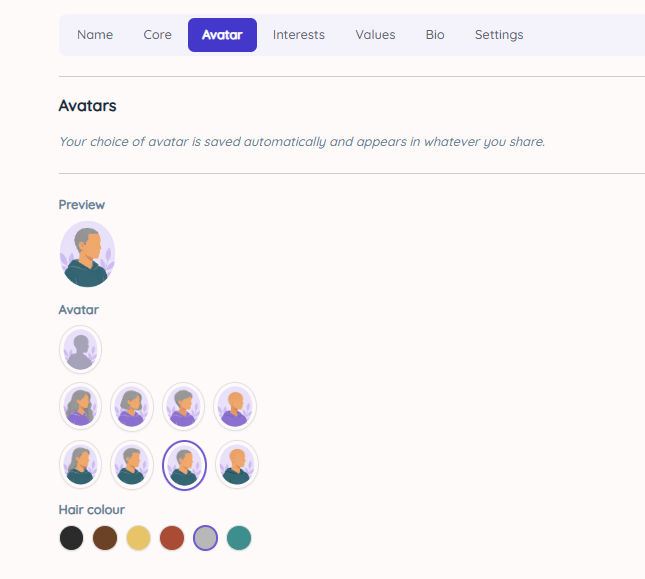
Your Avatars tag lets you choose an avatar to go with the name(s) you have chosen. Both show when you post in a topic, have a Private Conversation or find other members with things in common.
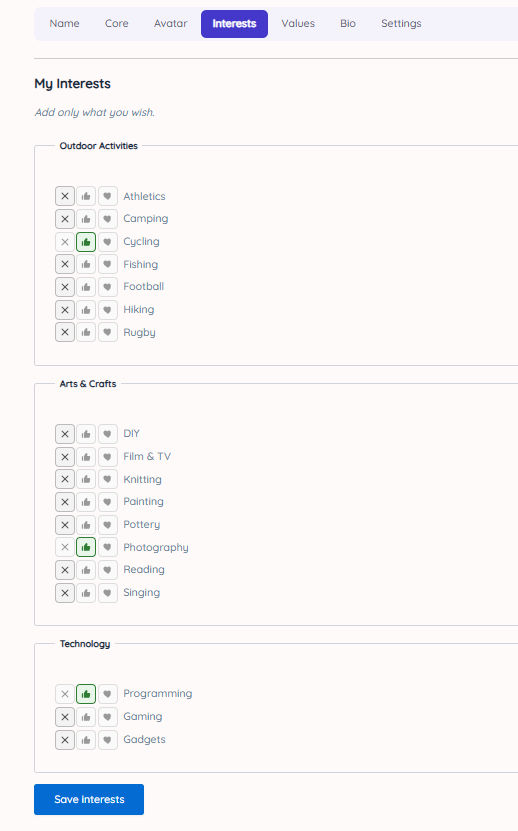
Your My Interests tag allows you to like or love your choice of Interests.
These can be used to find members with things in common.
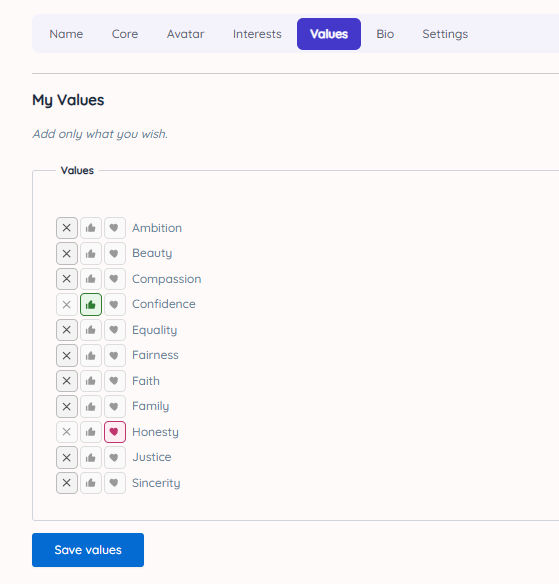
Your My Values tag allows you to like or love your choice of Values.
These can also be used to find members with things in common.
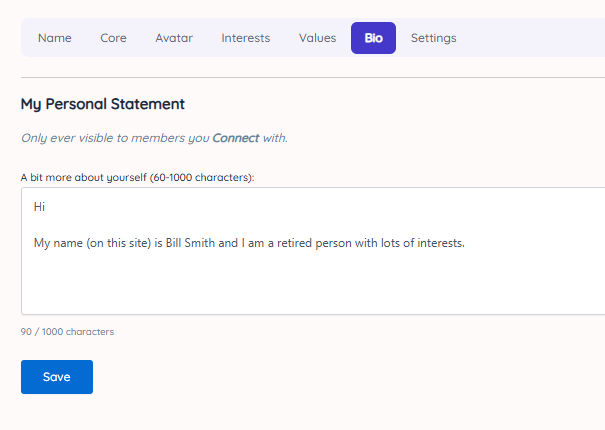
Your Bio tag is your Personal Statement that says a little more about yourself.
It is only shown if you choose to Connect with another member.
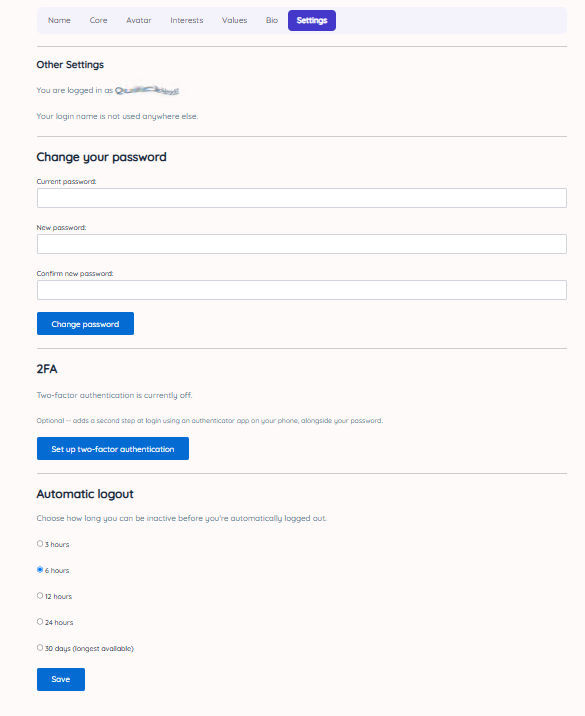
Your Settings tag reminds you of your username, allows you to change your password, lets you switch 2 factor Authentication (2FA) on and off and sets how long you can be inactive before you are automatically logged out.
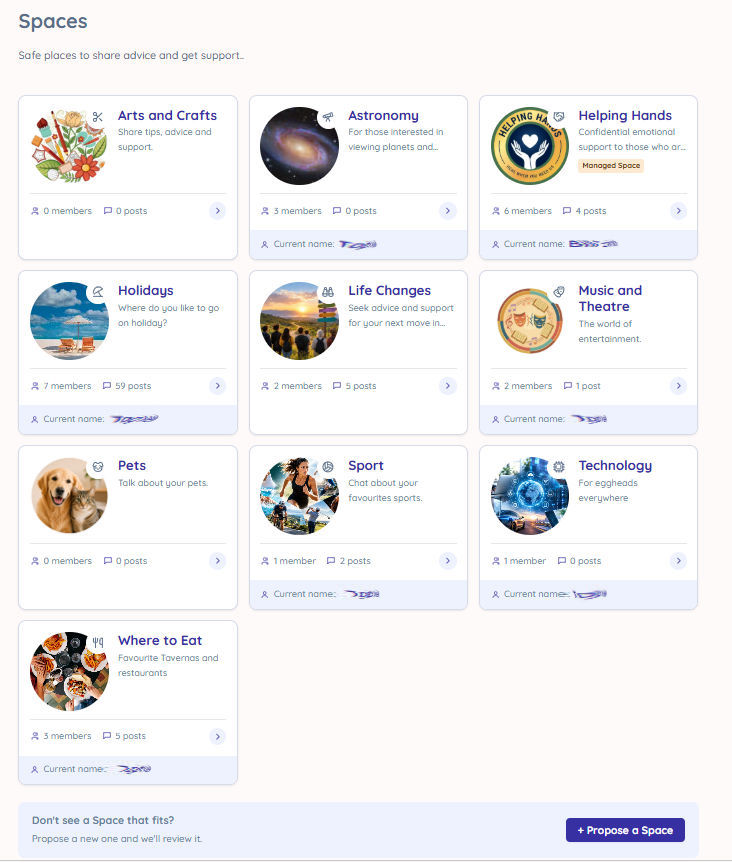
Spaces are public communities where you can share advice and support with other members.
Any new Space you propose is subject to approval by the site moderator.
Some Spaces are marked as Managed Spaces.
This means that they may deal with sensitive issues that require expert, trusted, professional guidance.
Managed Spaces have owners who manage what can be created and have different ways of how you communicate within them.
For example, a Managed Space topic thread will always show if an owner is present on the site.
If they are not, it's possible for them to set up automated answers that may help you.
You can only PM on a one-to-one basis with the owner in a Managed Space thread, whereas in other Spaces, you can PM with anyone (who accepts your invite) and have a group PM.
Join a Space to reveal its menu:
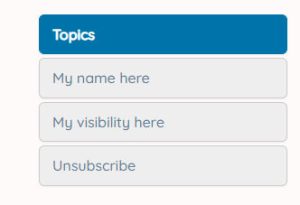
Selecting Topics reveals the list of the topics which you can browse and comment in.
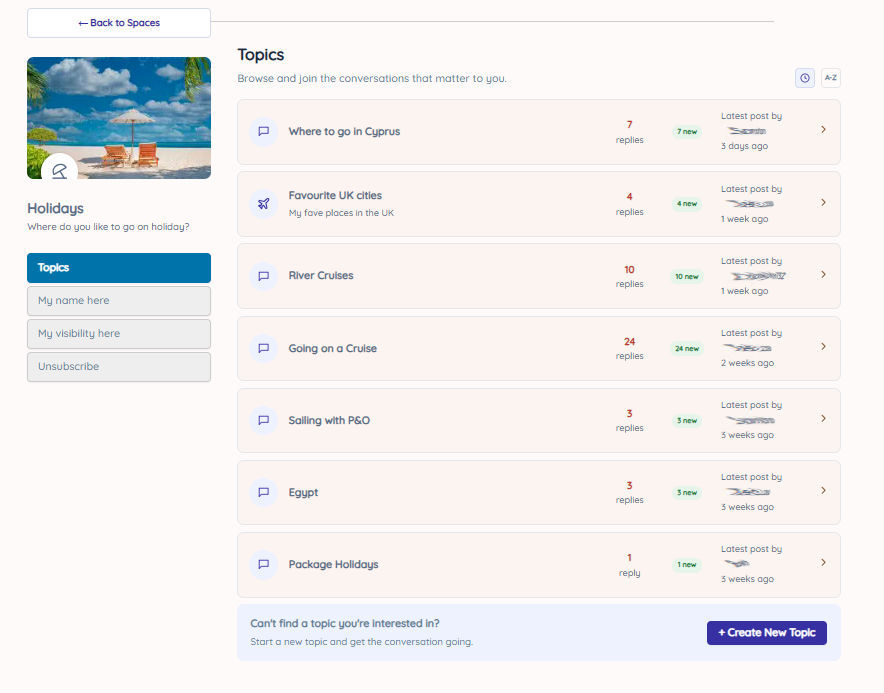
You can create a new topic which becomes active immediately.
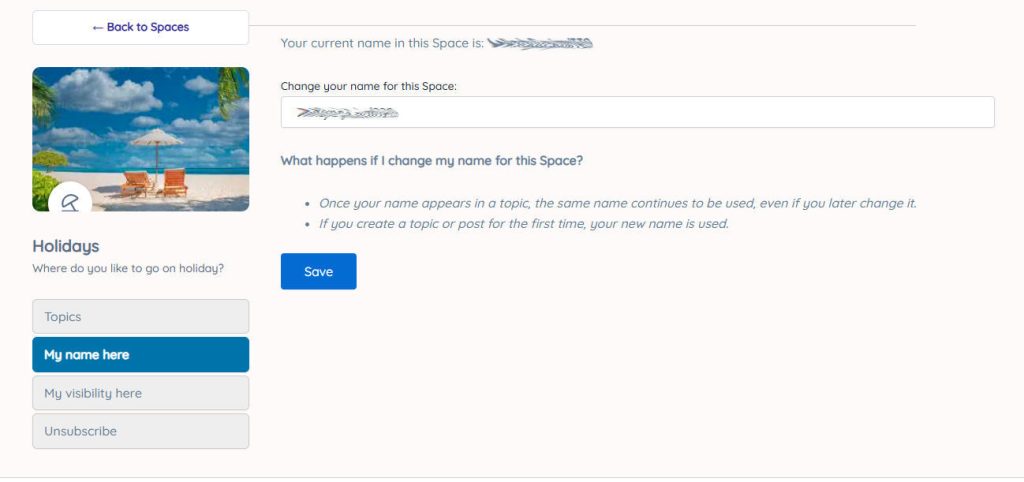
Selecting My name here allows you to change your name for this particular Space, regardless of how you have set it in your Name tag.
As soon as you post in a topic, that name is fixed for that topic, regardless of whether you then choose to change your name for this Space.
If you do change your name, the new name is used when you create a new topic or post in a topic for the first time.
Remember: As soon as you post in a topic, your name for that one topic stays the same.
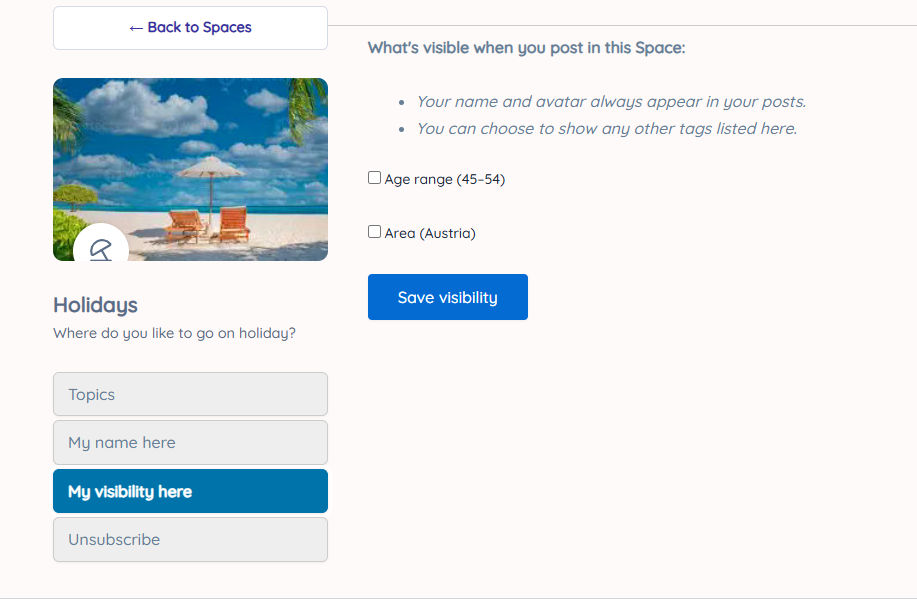
Selecting My visibility here allows you to reveal a little more of yourself when you post in a topic.
You can choose to reveal information you have added to your Core Tags when you post a comment.
Your name and avatar always appear when you post a comment.
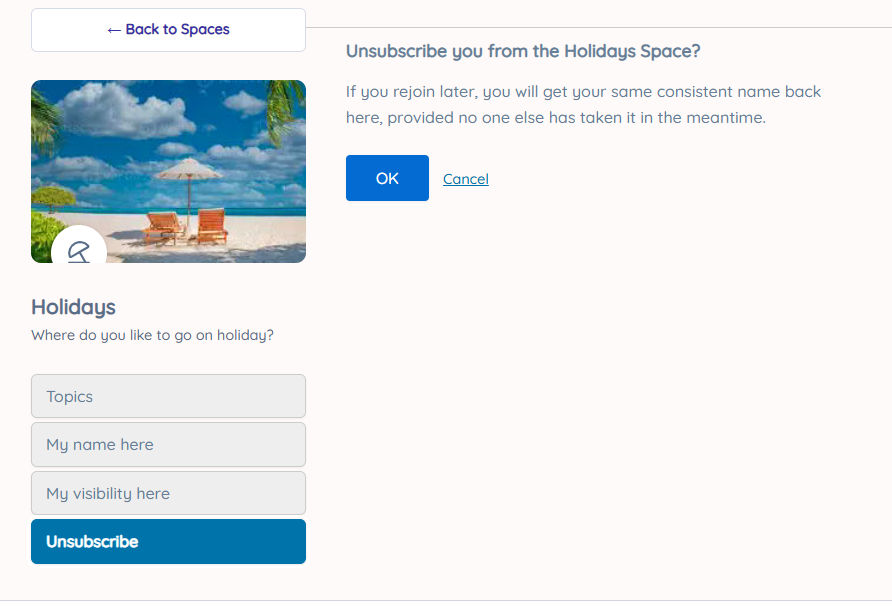
Selecting Unsubscribe allows you to Unsubscribe from this Space.
Posting in a Topic
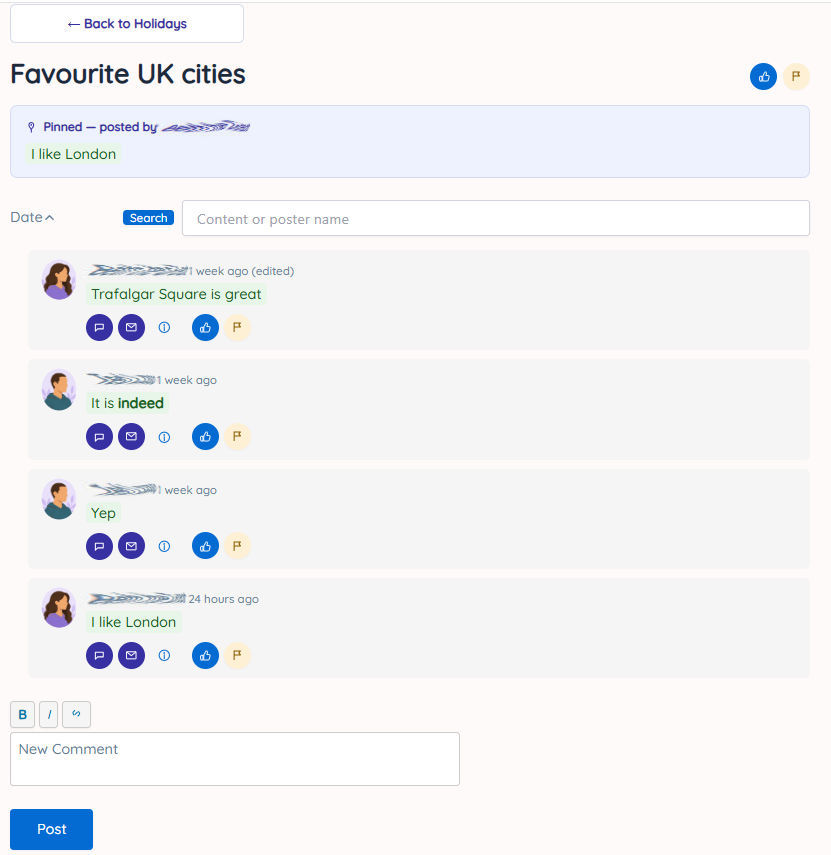
When you post a comment in a thread, you can choose to make your text bold or italic and add a link to an internet address.
Several icons appear under each comment that has been posted, depending on who you are:
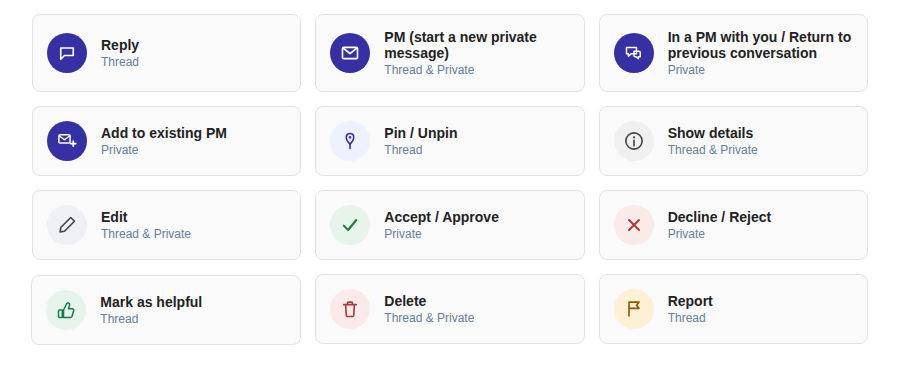
Reply – reply to a comment from another member
PM - Request to Private Message a member – the recipient can accept or decline the request
In a PM with you – returns to your list of your PM’s to see what is still active
Add to existing PM - Invite the member to join a PM you are already in with other members. Existing members must all agree for the invited member to join before that member sees an invite
Pin / Unpin – allows you to pin or unpin one of your own comments to the top of a thread you have created
Show details - Shows any information about the comment author that they have chosen to reveal
Edit – allows you to edit your own comment or the details of a thread you created (provide no-one has posted in that thread in the meanwhile)
Accept / Approve - accept any invitation
Decline / Reject - decline any invitation
Mark as helpful - Like that author’s comment. Receiving enough likes earns the author an Established Member or Highly Trusted Member label
Delete – allows you to delete your own comment or the details of a thread you created
Report - Flags the comment or topic to the site moderator
Posting in a Managed Space
In a Managed Space only an owner can create new Topics.
When you post a comment in a Managed Space Topic, you cannot PM with another member, only the owner of the Space.
At the top of the Managed Space topic thread, you will see a PM button.
If you PM the owner, the conversation will start immediately, if an owner is available.
If the owner PM's you, you will need to accept or decline their invite.
Related Resources
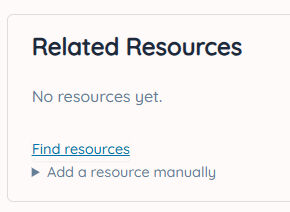
Click on Find resources to automatically generate a list of resources that are most relevant to a topic or add a specific link to a resource yourself.
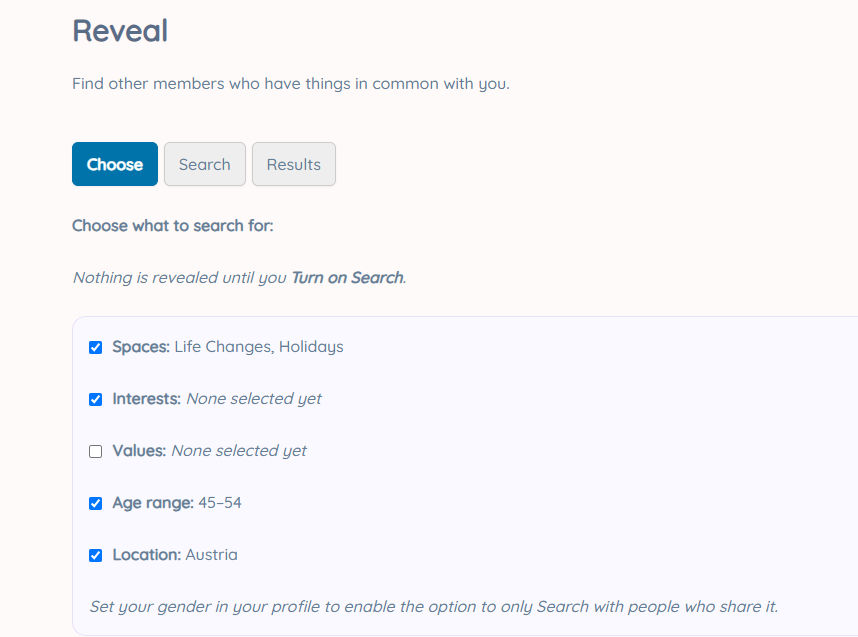
Selecting Choose allows you to decide which of your tags to use in your search for members who have things in common.
In the example above, the search will be for members who have joined the "Life Changes" and "Holidays" Spaces, who are in the 45-54 Age range and whose Location is Austria.
It cannot search on your Interests as you have not selected any of these in your Tags yet.
If you set your Gender, you can also choose just to search for people of your own gender.
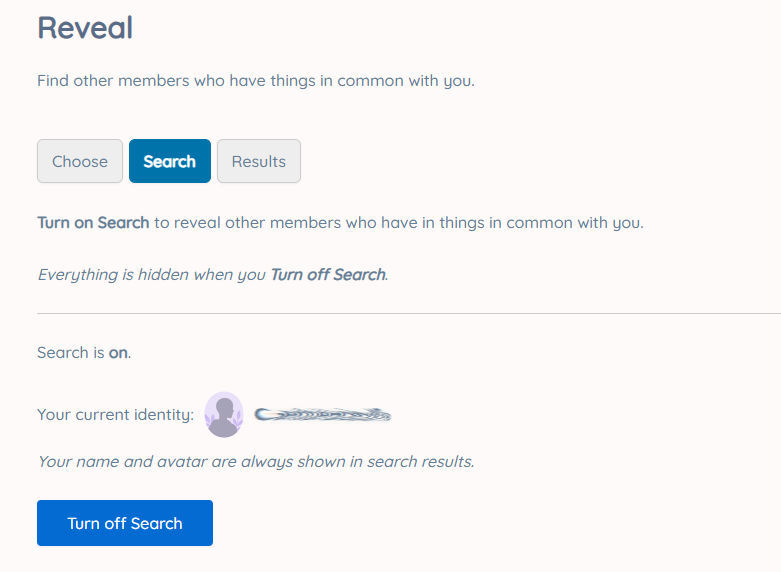
Selecting Search allows you to turn the Search function on or off.
Nothing about you is revealed whenever Search is switched off.
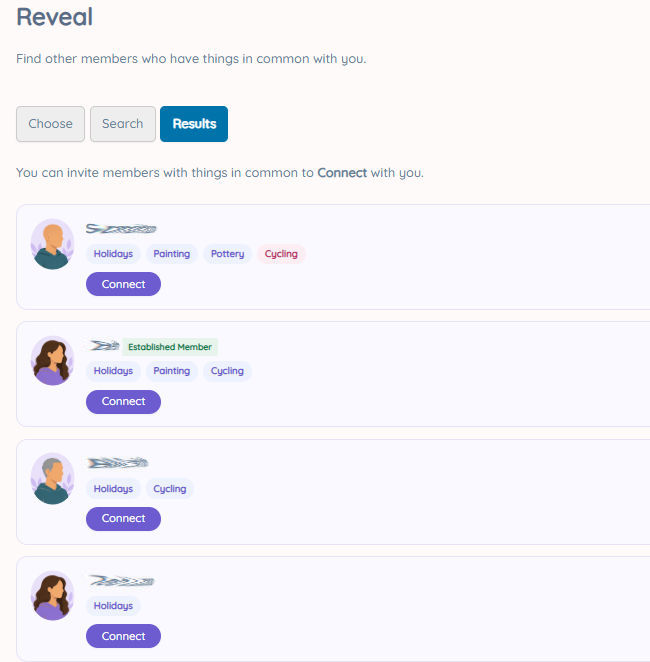
Selecting Results reveals members that have things in common with you, based on your search criteria.
Only members who have also switched on Search will be revealed and only what they have in common with you is shown.
You can choose to Connect with any of these members.
Choosing to Connect with a member will reveal all your information to them and all of theirs to you.
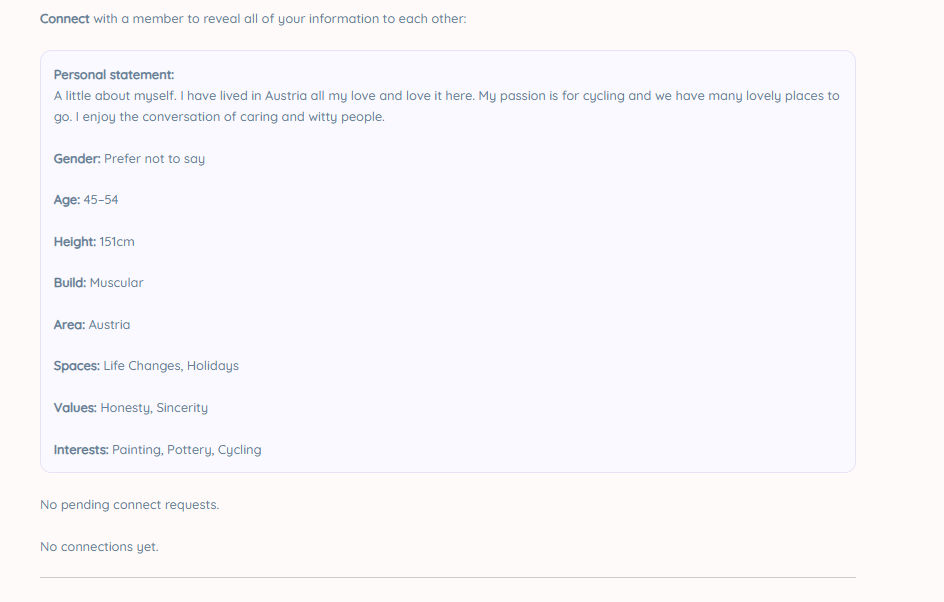
This means that to Connect, you must have entered something in all your Tags. If you haven’t completed all your Tags, you will not be given the option to Connect.
When you click on Connect, the other member can accept or decline your invitation.
Connected members and invitations to Connect will show on your Results screen.
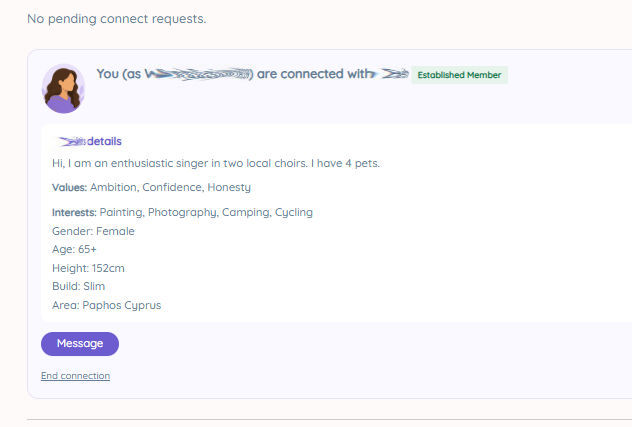
Note: To safeguard everyone, if your request to Connect is declined, you cannot send another request to that member for 7 days.
You can choose to end a Connection at any time.
If you turn Search off, all your Connections are permanently ended.
Connected members can Message each other without having to accept / decline an invitation.
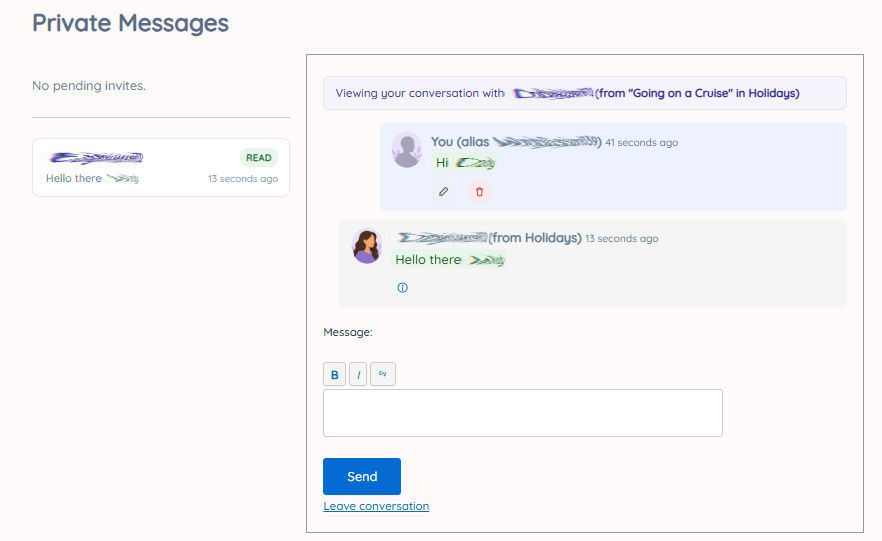
You can request to have a PM (Private Message) with anyone within a topic thread.
Your PMs icon shows if you have any requests or ongoing PMs.
Your Private Messages screen shows a list of anyone you are in a PM with and the current status of that conversation.
Note: Your identity in a PM will be the one you had when you first posted in that topic, even if it has since changed. The same is true of who you are in a PM with.
You can choose to invite more than one member to a PM, thereby creating a Group PM.
You can leave a PM at any time.
If the other member(s) leave the PM you will be notified.
There is also a Message the moderator link that you can use to alert a Moderator of any concerns, questions or suggestions about the site.
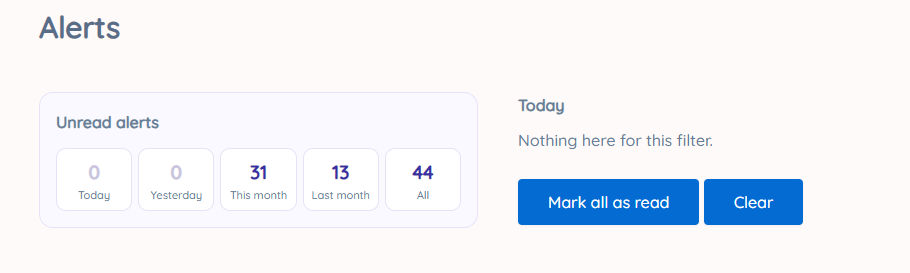
Alerts are messages you receive when something happens that affects you.
All of the different types of alert you may receive are shown here:
| Type | Triggered when | Message shown |
| Conversation Invites | You're added to a new PM, an existing one, or a Managed Space Team conversation; or someone accepts a proposed addition to a group PM | Varies by context — e.g. "You have a new PM." |
| New message | Someone sends a new message in a conversation you're still active in | Sender's name + "sent you a new PM." |
| Proposal to add another member to a PM I am in | Someone proposes adding a new person to a group PM you're in | "[Proposer] wants to add [person] to a PM you're in." |
| Conversation left | Someone leaves a conversation you're still active in | "Someone has left one of your conversations." |
Matching & connections
| Type | Triggered when | Message shown |
| Someone in common | You and someone else have something in common (sent to both people) | Match-specific message |
| Connect request | Someone sends you a Connect request | "Someone sent you a Connect request." |
| Connect acceptance | Someone accepts your Connect request | "Your Connect request was accepted." |
| Connected member values | A Connected member updates their Values | "A connection's Values have changed." |
| Connect member bio | A Connection updates their private statement | "A connection's private statement has changed." |
Topics & community
| Type | Triggered when | Message shown |
| Topic mention | You're @mentioned in a topic or reply | Mention-specific message |
| Trust level reached | You cross into a new trust tier (Established/Highly Trusted, from Helpful marks) | "You've reached [tier] status!" |
| New Space approval | An admin approves a Space you submitted | "Your Space submission "[title]" was approved." |
If you click on an alert, you are taken to the information to which it refers.
Once clicked, the alert will either disappear from the list or be shown as read.